
Practically tested recipe · Oxygen 6.2 RC1 · 13 October 2026. See the test scope and version notes below.
What it does and when to use it
Display an image from your media library or a suitable external source. This example focuses on one achievable outcome rather than listing every possible setting.
Before you start
Use a private test page with Oxygen 6 and a screenshot you have permission to publish. No Breakdance extension, WooCommerce or custom CSS is required for this example. The three linked Container, Text and Image recipes build the same practice project introduction. The values below are example settings.
Worked example: A readable project screenshot
This is a recreated learning example using the service website kit. It is not presented as a completed client project.
- Prepare a screenshot that shows the interface detail you want to explain. This test used a 1440 × 900 JPEG of the service website kit. Upload it through the WordPress Media Library. The Container example provides its responsive parent layout.
- Add the native Image element inside the image column. Open Content, choose From → Media Library, open the media picker and select the uploaded screenshot.
- Set Size to Full for this source screenshot. Under Alt, choose Custom and enter a description in Custom Alt. The tested value was “Service website home page with a large introduction, navigation and a green contact button.” Describe what matters in your own image instead of copying that value blindly.
- Create or select the class
project-screenshot. Open Size in its design controls and set Width to 100%. Leave Height unset so the complete screenshot retains its natural proportions. Do not add a fixed-height cover crop to this example. - Keep Lazy Load enabled for this supporting image and keep Disable Srcset & Sizes off. WordPress can then serve the generated image sizes. A prominent image at the very top of a different page may need different loading settings.
- Save and inspect the frontend at 320, 375, 768 and 1440px. In this test the image fitted its column at every width, kept the full frame and exposed the configured alt text. Reopen Image → Content and confirm the attachment and Custom Alt remain saved.
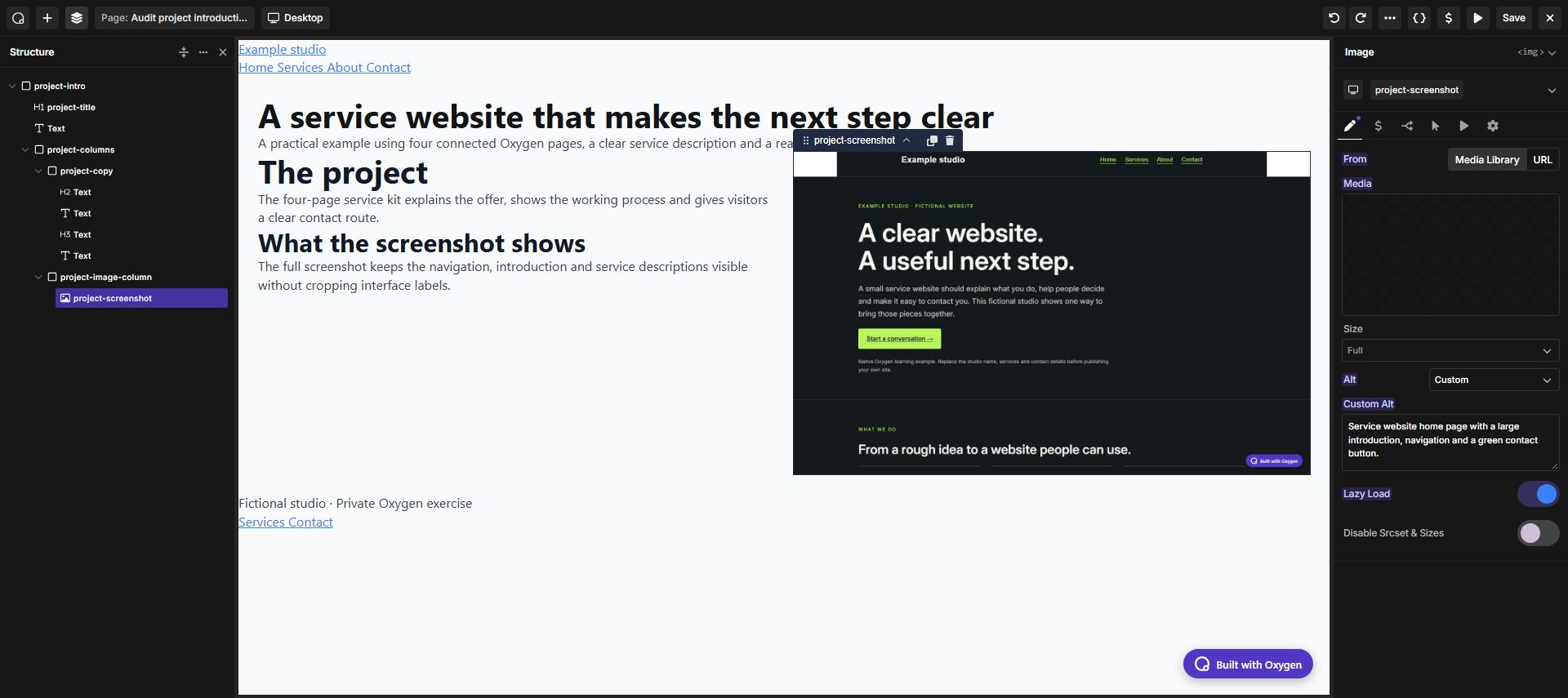
Expected result
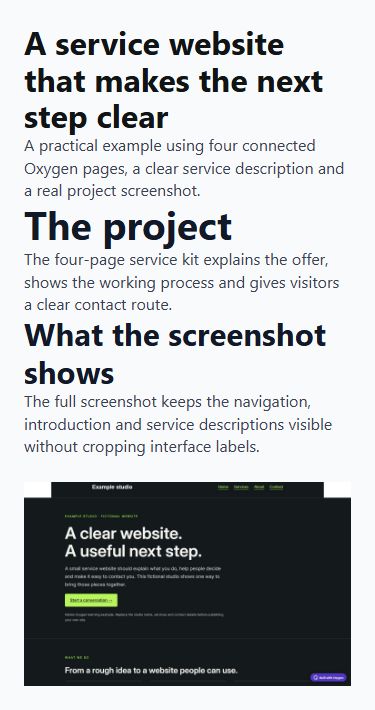
A project introduction with a semantic heading, readable copy and an uncropped screenshot. The two columns become a vertical stack on phones.
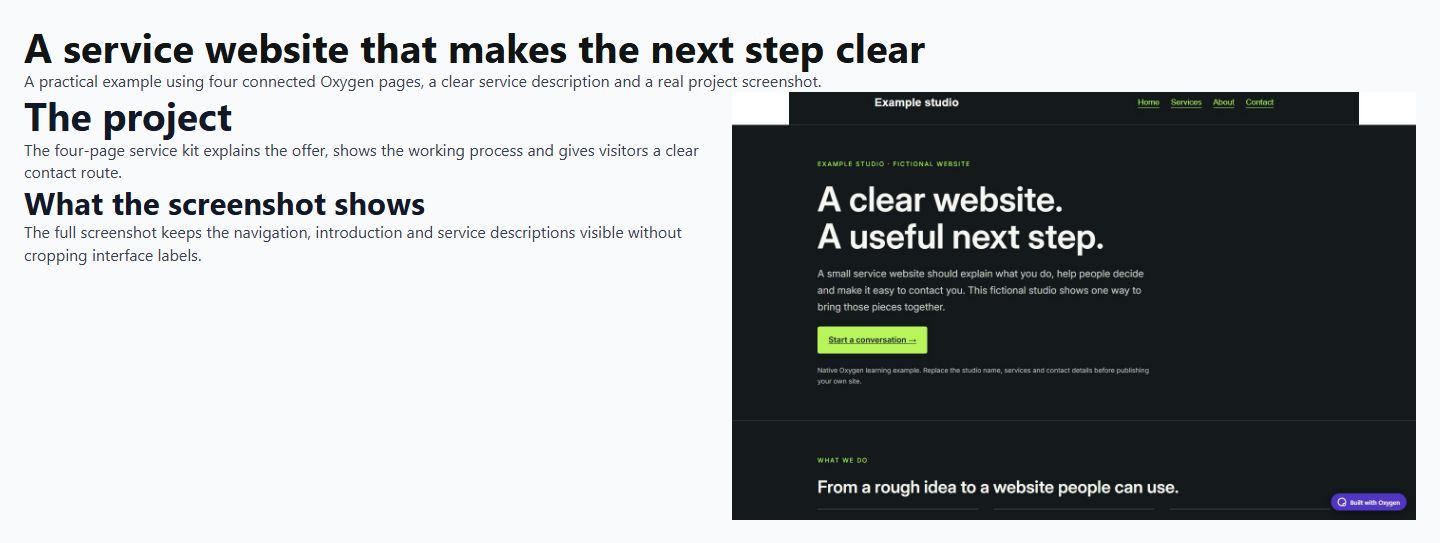
View the actual 375px mobile result. At phone widths the image appears below the text. The 1440 × 900 source image keeps its natural proportions.
Troubleshooting
If important labels disappear, remove cover-style cropping and show the complete screenshot. A background-like crop is unsuitable for instructional details.
Checks before publishing
Do not describe decorative images unnecessarily. Compress large files and avoid stretching them beyond their useful resolution.
- Compare desktop and narrow-screen layouts using actual content.
- Follow every destination and operate interactive controls with a keyboard where applicable.
- Check an empty or unavailable-data state when the element depends on a provider.
Official reference and version notes
Official Image reference provides the current provider information. This is independent, AI-assisted documentation on Benjamin Olsen’s website; examples are clearly identified as practice recipes.
Reproduced through the Oxygen interface on 13 October 2026 using Oxygen 6.2 RC1, WordPress 7.1.2 and PHP 8.5.11 in a private SQLite test installation. The saved frontend was checked at 320, 375, 768 and 1440px: no page-level horizontal overflow, correct heading tags, responsive columns and image alt text. Settings were saved and checked after reopening the builder. This verifies the recipe below, not every element option, every browser or a complete accessibility audit. The live website was not upgraded.