
Frontend-tested example · Oxygen 6.2.0-beta.9 · 17 October 2026. Test scope and limitations are listed below.
What it does and when to use it
Post Loop Builder repeats one reusable Component for each matching WordPress post. This example creates a latest-guides grid on a normal page: six posts per page, newest first, with a different title, excerpt and link in each card. It uses numbered pagination and a message when the selected category is empty.
This is a practice example, not a client project. An archive template needs a different query setup; see the troubleshooting notes below.
Before you start
Use a private test page. Create a category named Loop guide demo with the slug loop-guide-demo, then publish seven test posts in it. Give each post a different title, a manual excerpt and a different publication date. Seven posts let you verify six results on page 1 and one on page 2. Create a second category, Loop guide empty, without any posts.
Keep these fixtures off your public site. The instructions use native Oxygen Components, Text, Text Link and Post Loop Builder elements.
Worked example: A six-item latest-guides grid
1. Build one dynamic card
- Create a Component named Loop Guide Card. Add a Container, a Text element tagged
h2, a second Text element for the excerpt, and a Text Link labelled Read guide. - Use the dynamic-data picker to bind the heading to Post Title, the excerpt to Post Excerpt and the link URL to Post Permalink. Leave the field context on the current post; do not select one fixed test article. The loop supplies the current item when it renders the Component.
- For the illustrated card, give the Container a class with a vertical flex layout, 16px gap, 24px padding, 100% height, background
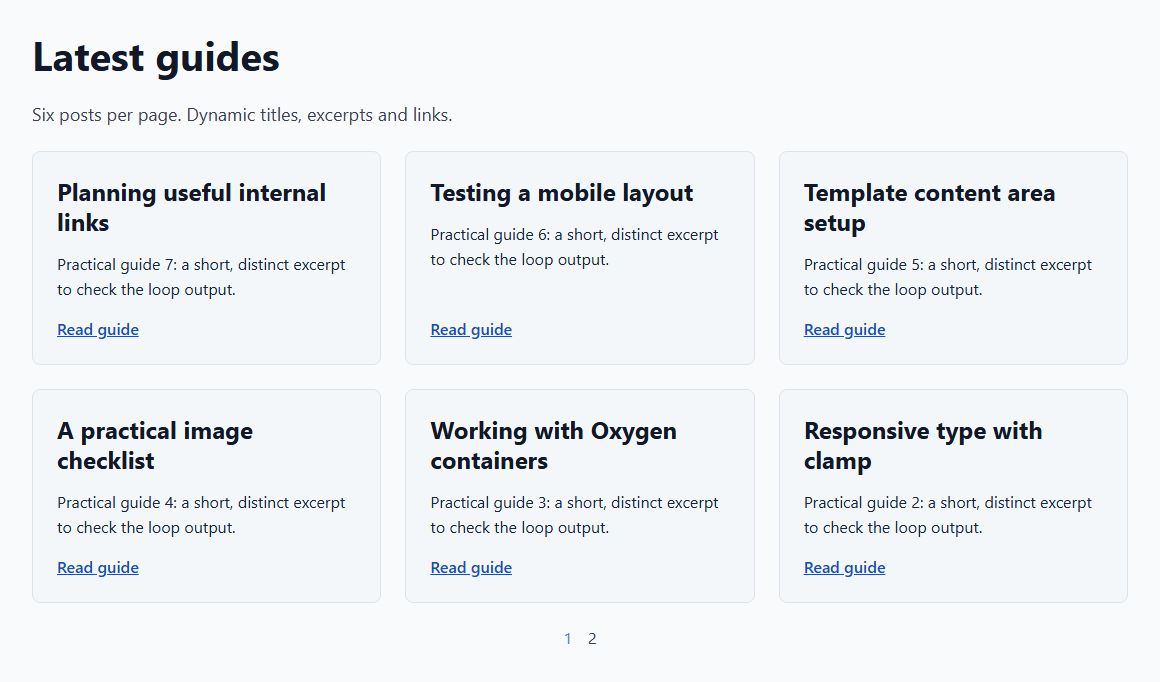
#f4f7fa, a 1px solid border in#dce3eband 8px radius. The heading uses 24px text and 1.25 line height. Set the link’s top margin to auto. These are example styles; the dynamic bindings are what make it a reusable card.
2. Add the loop and select its query
- On your normal test page, add a main heading and Post Loop Builder. In Content → Repeated Block, select Loop Guide Card and set Tag → article.
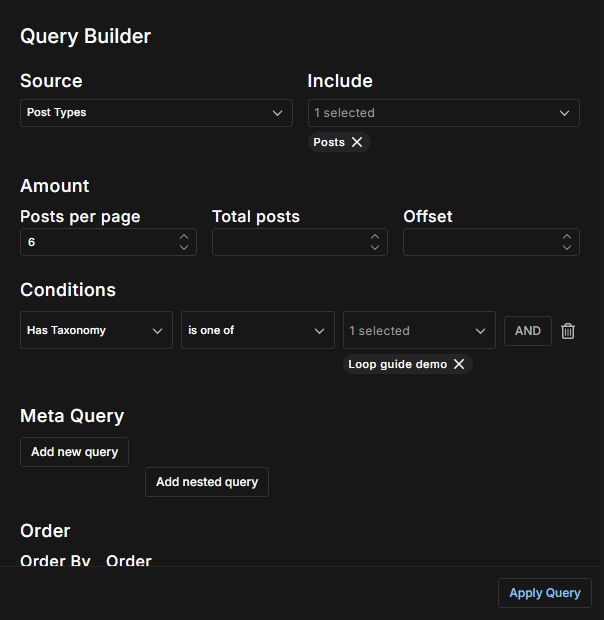
- Open Content → Query → Custom → Edit Query. Set Source → Post Types and Include → Posts.
- Under Amount, set Posts per page → 6. Leave Total posts and Offset empty. A total limit of six would leave no seventh result for page 2.
- Add the condition Has Taxonomy → is one of → Loop guide demo from Categories. Set Order By → Date, Order → Descending and Date → All. Enable Ignore sticky posts; leave Ignore current post off for this normal-page example. Select Apply Query.
3. Set the grid and pagination
- Open Design → List. Set Layout → Grid, Items Per Row → 3 on Desktop, and Space Between Items → 24px.
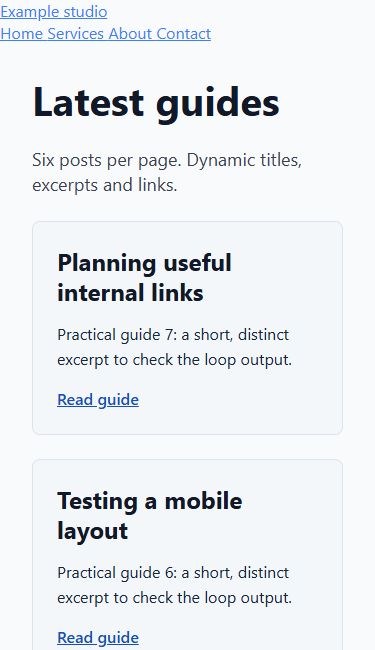
- Switch to Tablet Portrait and set Items Per Row to 2. Switch to Phone Landscape and set it to 1. In this installation those overrides apply at 1023px and 767px respectively; check your site’s breakpoint settings if they differ.
- In Design → Post → Padding, set all four sides to 0px. The Component already supplies its own 24px inner padding. This avoids an extra layer of spacing around each card.
- In Content → Pagination, select Numbers. Keep Filter Bar disabled. Save the page.
4. Provide an empty state
Create a second Component named Loop Guide Empty State, containing the text “No guides in this category yet.” Select it under Content → Repeated Block → Advanced → When Empty. On a separate test copy of the page, change only the category condition to Loop guide empty. The message should replace the cards, with no page-number links.
Use the Oxygen interface
The card’s Container class controls its appearance; the loop’s Design → List controls the grid. Keep those responsibilities separate. The illustrated outer Container has a maximum width of 1160px, automatic side margins and 32px padding. It contains one h1, an introduction and the loop.
For a paginated version of this recipe, use Custom → Edit Query. A static Text query was tested too, but page 2 repeated page 1 in this version. The Custom query above returned the correct seventh post.
Expected result
Page 1 shows the six newest matching posts. Every title and excerpt belongs to its own post, and all six link URLs are distinct. The grid has three columns on desktop, two on tablet and one on phones.
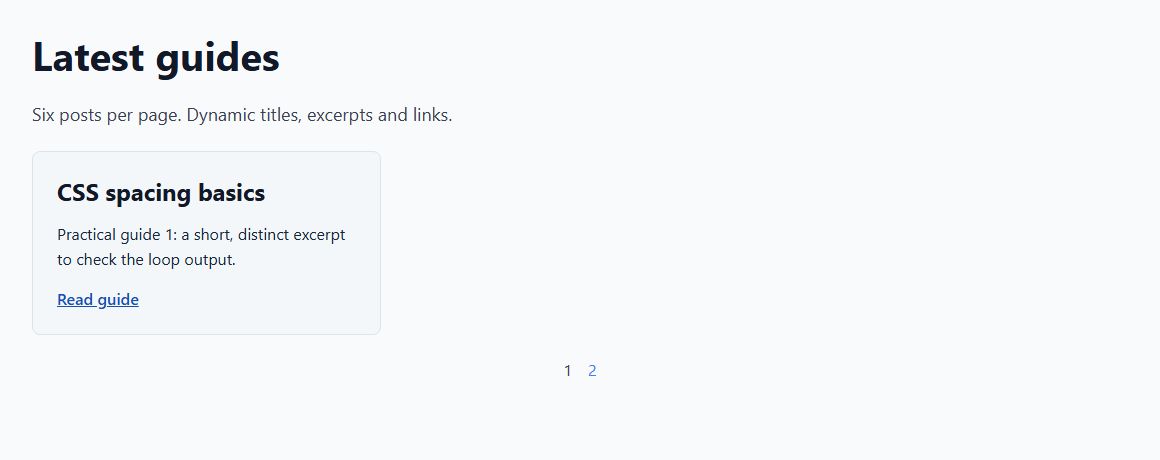
Select 2 below the grid. Only the oldest of the seven test posts should remain; select 1 to return to the six newer posts. Open at least two Read guide links and compare each destination heading with the card you selected.
Troubleshooting
- Page 2 shows the same six posts.
- Check whether Query is set to Text. In the tested beta.9 installation, the static Text query did not advance the results when the page number changed. Switching to Custom → Edit Query with the values above fixed it. Verify the actual cards after clicking; a changed URL alone is not a passing test.
- There is no page 2.
- Make sure at least seven published posts match the category, Posts per page is 6, Total posts is blank and Pagination is Numbers. Six matching posts correctly produce only one page.
- Every card has the same title or destination.
- Edit the repeated Component. Replace literal titles or URLs with Post Title and Post Permalink dynamic bindings. Do not bind them to a fixed post ID.
- The query returns nothing.
- Check the selected category and publication status first. Test the empty-state Component deliberately using an empty category. Do not interpret the empty message as a broken layout.
- The spacing is much larger than 24px.
- Check both the loop’s Post padding and the Component’s padding. The tested setup uses 0px on the loop item, 24px inside the card and a 24px grid gap.
- Cards stay in three columns on a phone.
- Set Items Per Row to 1 at the appropriate smaller breakpoint. Check the saved frontend width and your custom breakpoints, rather than relying only on the builder preview.
- You are building a category or search archive.
- This recipe uses a normal page. For an archive’s primary loop, preserve the inherited main query instead of applying this category-specific custom query. Oxygen’s documentation states that custom-query pagination on archive templates is unsupported.
- You also want a filter bar.
- The native filter bar and pagination cannot be combined. Keep the filter bar off for this paginated example.
Checks before publishing
- Count six results on page 1 and one different result on page 2 with seven matching test posts.
- Confirm distinct titles, excerpts and URLs, then open two links and verify their destination headings.
- Check desktop, tablet and phone widths for the intended column count and horizontal overflow.
- Switch a test copy to an empty category: show the message and no cards or pagination.
- Save the query, reload the frontend and repeat the page-2 test. Check keyboard focus and link operation in your own design before launch.
Official reference and version notes
Official Oxygen post-loop documentation covers the native query, layout and pagination controls. This is independent, AI-assisted documentation on Benjamin Olsen’s website.
Tested on 17 October 2026 in a private SQLite installation with Oxygen 6.2.0-beta.9, WordPress 7.1.2 and PHP 8.5.11. Native Oxygen elements and Components were prepared programmatically; the Query Builder settings were inspected and saved in the editor. Saved frontend checks covered six distinct cards, two article destinations, numbered pagination, an empty category, and 390px, 820px, 1440px and 1920px browser viewports. No page-level horizontal overflow was observed at the checked widths. The local editor canvas remained blank, so a full manual build with a working canvas was not verified. These checks do not establish behavior in other versions, on physical devices or in every browser, and are not a full accessibility audit.