
BENJAMIN OLSEN · PRACTICAL OXYGEN RESOURCES
Build a service website.
Make every page yours.
Four connected page layouts, a shared header and footer, and three practical starter sections. Build in Oxygen, replace the fictional content and use the same design controls you already know.
Design Set URL: https://benjaminolsen.dev/?bo_design_set=generalOne project. Four useful pages.
The example is a fictional studio website: explain the service, show how the work happens and give visitors a clear next step. All page content is built from native Oxygen elements. Breakdance extensions, WooCommerce and Benjamin Olsen plugins are optional.
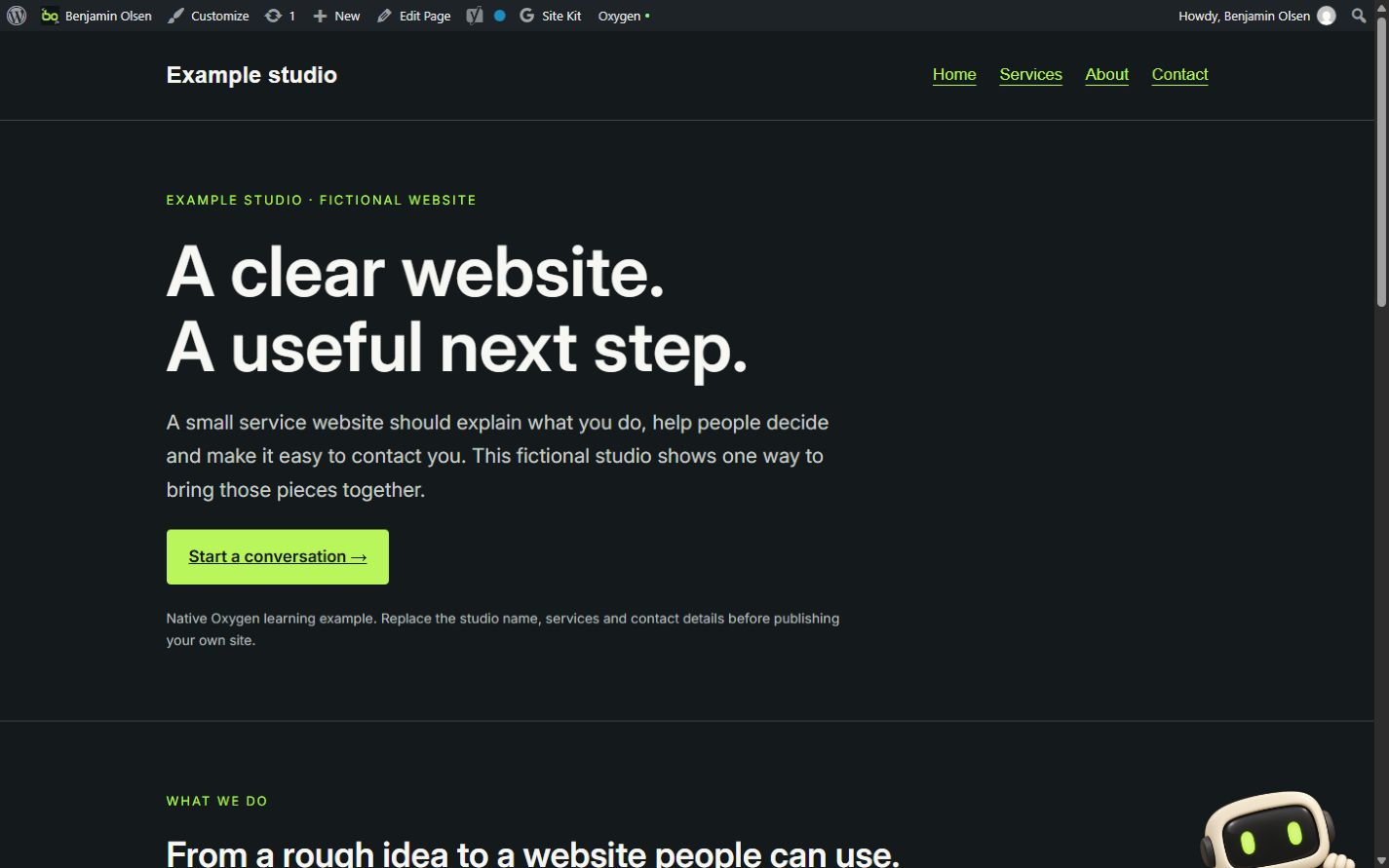
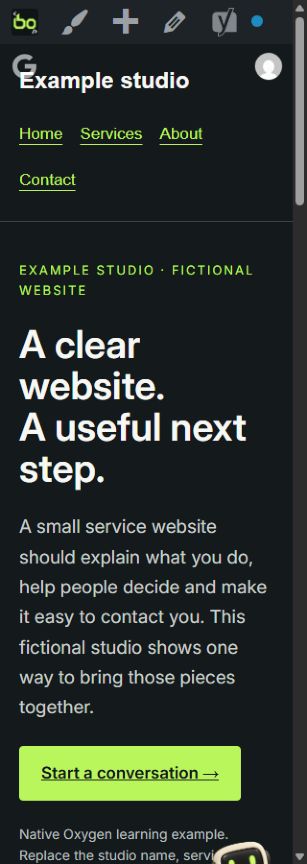
Actual rendered example, 13 October 2026. The studio and its services are fictional. View the mobile screenshot.
1. Prepare your four pages
Start on an empty staging website and back it up. Importing this library’s Selectors replaces the destination selector set in the tested Oxygen versions; importing into an existing website can change its current designs. In WordPress, create Home, Services, About and Contact. Open Home in Oxygen and connect the General Design Set using the steps below. Select Service Website Kit — Home, import Selectors once, then choose Import Page and Save. Repeat the page import with the matching layout for each page.
Import into an empty page so you do not leave an old hero or a second H1 above the design. The preview’s header and footer are separate templates and are not part of the imported page body.
2. Add one shared header and footer
In WordPress → Oxygen → Headers, create a header and open it in Oxygen. Import Service Website Kit — Header. Do the same under Oxygen → Footers with the Footer design. Set their display conditions to the four project pages while testing. If another header or footer already matches, review its conditions and priority so only one is displayed.
Select every navigation and contact link and use the URL control to choose your own page. Imported examples use /oxygen-service-kit-home/, /oxygen-service-kit-services/, /oxygen-service-kit-about/ and /oxygen-service-kit-contact/; replace these if your slugs differ. Set your actual Home under WordPress → Settings → Reading when the site is ready.
3. Change the design through Oxygen
- Select a heading and choose its bo-library-kit-title class. Change its color, font and size through Typography. Edit the class when all headings using it should change; edit an individual element when the change should apply only there.
- Select a section and edit bo-library-kit-section. Use the spacing controls to adjust padding and gaps. Start with the existing spacing and reduce it at smaller breakpoints only where the content needs it.
- Select a button and edit bo-library-kit-button. Check its text/background contrast and keyboard focus after changing colors. Reuse your own Oxygen variables when appropriate.
- Switch between Desktop, Tablet and Phone in Oxygen. Check long headings and links. Save, close and reopen the page to confirm your changes remain.
You can use the Spacing Scale Generator to choose values and the Contrast Checker to assess colors. No custom stylesheet is required for these design changes.
4. Replace the example with real content
Rewrite the studio name, services, process and FAQ for your actual work. Keep claims you can support. The Contact layout contains a clearly marked hello@example.com placeholder; replace it with your contact address or add your chosen form. The library does not install a form plugin or send messages for you.
A working enquiry path is a launch requirement. Submit a test through your real form and confirm receipt before publishing. If you add images, choose meaningful alt text, check crops at narrow widths and use an optimized copy from your Media Library.
5. Check the result and record the handover
Open all four saved frontend pages. Follow every menu and call-to-action link. Use Tab and Enter to reach links and FAQ controls. Test 320, 375, 768 and 1440 px, then browser zoom. Use the Responsive Content Tester with long content and reset the preview afterward. Finish with the Website Launch Checklist and export your own evidence.
Example launch report · 13 October 2026
Passed: all four page layouts fit 320, 375, 768 and 1440 px in the private installation on Oxygen 6.2.0-beta.9 and 6.2 RC1. The pages have one H1 and one main content area. The Home FAQ opens with Enter.
Passed: native Home import and selector import from the public General Design Set on the separate RC1 test installation. A heading color changed through Oxygen’s Typography control, saved and appeared on the frontend. Existing site content was not replaced by the page import.
Before a real client launch: replace example content and links, configure and receive a contact test, review privacy information, and check the final content with keyboard, zoom and assistive technology. This example is a tested layout starting point, not a certification of accessibility or launch readiness for your own site.
If the result looks different
Unstyled layout: import Selectors from this Design Set and reopen the saved page. Missing new layouts: Oxygen caches external library listings for up to 25 hours; an older connected library can show the previous list until that cache refreshes. Two headers: review the matching template conditions. Broken contact link: replace the example URL with your page’s actual permalink. Changed spacing elsewhere: a shared class affects every element using it, so use a separate class for a one-off variation.
Three extra starter sections
01 · Personal introduction
A large text-led introduction with your name or craft, a short explanation and one link to your work. Useful when you want visitors to understand the person behind the website.
02 · Working process
Three clear stages: understand, build and check. Adapt the wording to your actual service or project process.
03 · Practical FAQ
Expandable questions using native details and summary controls. Use concrete answers about preparation and contact; the controls work with a keyboard and do not need JavaScript.
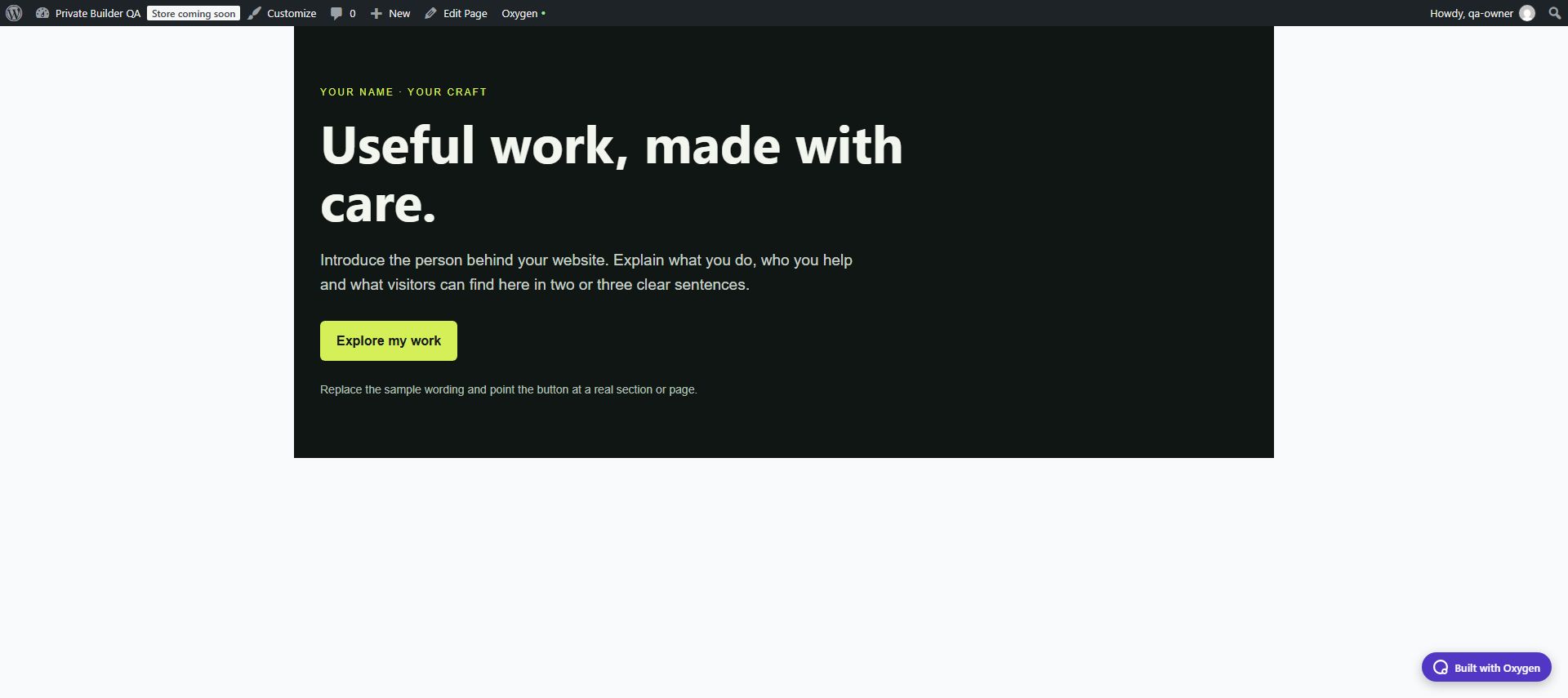
Actual screenshot from the private Oxygen test site. Sample content must be replaced before publishing.
Connect the native Design Library
- Open WordPress → Oxygen → Settings → Design Library.
- Add this Design Set URL to Custom Design Sets: https://benjaminolsen.dev/?bo_design_set=general
- Save Changes. Open the page you want to edit in Oxygen.
- Open the Add panel and choose the book icon to open the Design Library. Select this Benjamin Olsen library from Design Set.
- Select a design. Choose Import Settings and keep Selectors selected; Variables are not needed. In the tested Oxygen versions, this import replaces the destination selector set. Start on an empty test website, or back up your existing selectors and test the change on a staging copy. Read Oxygen’s overwrite notice before confirming. Use Import Page for a complete layout or Add to page for a section, close the library, then Save in Oxygen.
- Repeat for the pages you need. Edit the text, destinations and design controls, then check the saved frontend. The service website walkthrough on this page covers header/footer setup and launch checks.
Requirements and scope
Requires the new Oxygen builder with its built-in Design Library. Oxygen Classic is not supported. The library uses native Oxygen elements and responsive style classes. No additional library plugin is required. Import the library’s Selectors when prompted to preserve its appearance; importing class styles is controlled by Oxygen’s confirmation dialog.
The General Design Set now contains Home, Services, About and Contact layouts, header and footer designs, and the three original starter sections. Each is imported separately; this is not an automatic full-site installer. No global settings or design presets are required.
Report a problem Both design libraries