Practically tested in a private Oxygen setup. Example prices illustrate the calculation; they are not a quotation or a service offer.
A service estimate helps visitors understand which choices affect a project budget. BO Service Calculator combines a base price with quantities, one selected choice per field and optional additions. The visitor can copy the breakdown and follow your contact link.
Try the working calculator example →
Set up the agency example
- In Oxygen, use Add Element and search for BO Service Calculator. In Content, write a title and a short explanation.
- Set Currency code to DKK and Base price to 2000.
- Under Fields, add Pages. Choose Quantity, unit price 500, default 5, minimum 1, maximum 30 and step 1.
- Add Content support as Single choice. Add three choices: “I provide the content” at 0, “Review my content” at 1200 and “Help write the content” at 3000. Set the default option index to 1 to select the second choice. Indexes start at 0.
- Add Analytics setup as Add-on with price 800 and default 0. A default of 1 checks the add-on.
- Edit the result heading, labels and indicative-price disclaimer. Set Contact link using Oxygen’s URL picker and write a clear contact button label.
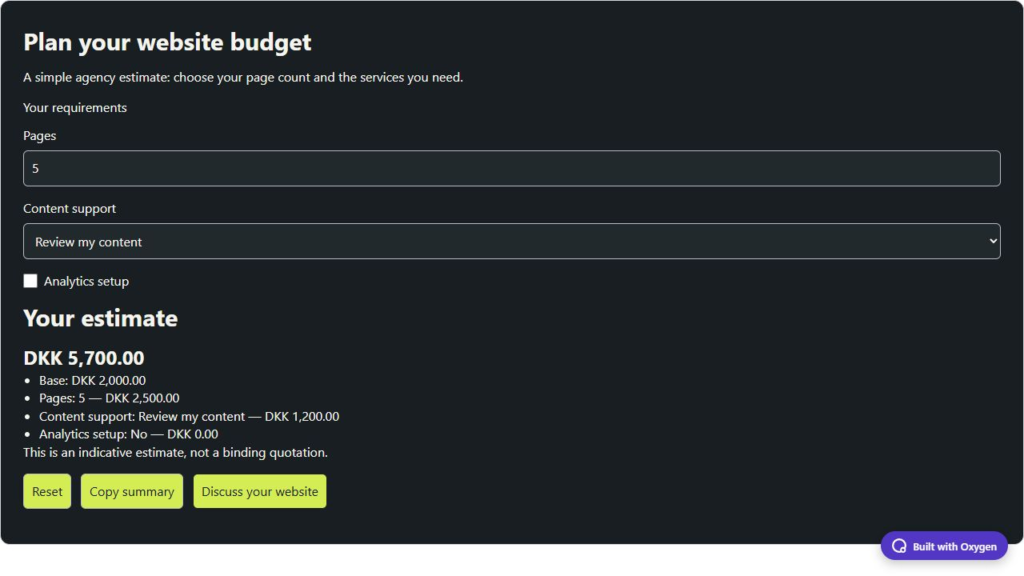
- Save and test the frontend. Five pages plus content review should show DKK 5,700.00: 2000 + (5 × 500) + 1200. Selecting Analytics setup raises it to DKK 6,500.00.
Visitor actions and limits
Reset restores the configured defaults. Copy summary copies the current choices and total; clipboard access requires HTTPS or localhost and browser permission. A readable error message appears when copying is unavailable. Quantity limits are enforced when a value is committed. Use decimals when the service genuinely has a fractional unit, and test zero and maximum values before publishing.
You can configure up to 20 fields. There are no free-form formulas, payments, automatic quotation emails or saved visitor details. JavaScript is needed for calculation. Keep the disclaimer visible and explain whether your example includes taxes; the plugin does not calculate tax or decide your pricing policy.
Check before publishing
Try every choice, add-on and quantity boundary. Confirm that the copy includes the same total as the screen, reset restores defaults, the contact destination works and labels remain readable on mobile. If a result is unexpected, check the base price, each field’s price and the zero-based default choice index.
Style it through Oxygen
Open Design and expand the part you want to change. Container controls the background, text colour, accent and padding. Use the native Typography and Borders and shadows popouts for fonts, corners and shadows. Style fields, cards or buttons in their own sections. Choose an Oxygen breakpoint before changing responsive values; your custom breakpoints work too. Two instances can have different colours and layouts without writing CSS.
The demos use my charcoal and lime colours. New elements inherit your site’s typography and start with neutral defaults. Save, reopen the builder and check the published frontend after changing a setting.
Requirements and tested versions
Install Oxygen Workflow Elements 2.0.0 on a separate test site first. It requires the new Oxygen 6, WordPress 6.0+ and PHP 8.0+. The practical tests used WordPress 7.1.2, PHP 8.5.11, Oxygen 6.2.0-beta.9 and Oxygen 6.2 RC1. Oxygen Classic is not supported. Breakdance extensions, WooCommerce and paid services are not required.